Introduction About Site Map

XML
RSS 2 Feed RSS 2 Feed
Navigation

Main Page | Blog Index

Archive for the ‘Productivity’ Category

The ‘Common Text’ Technique

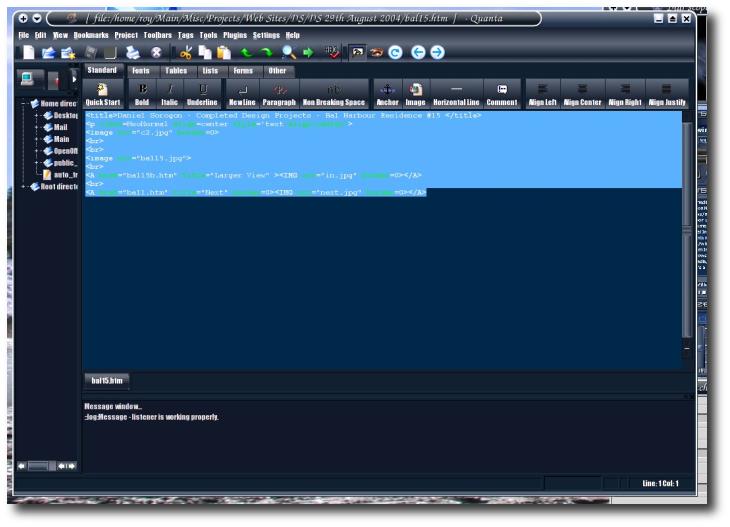
Quanta Plus

OVER the years I found myself inputting similar commands and/or text time after time, only with slight variations. This yelled out for re-use of some kind. In due time, tt seemed natural for me to keep these quickly-accessible for copying and pasting whenever required.
As of last year, the problem was nearing its end. I began to retain 3 separate text files: one for complex Linux commands (including various Internet address and scripts); one for commands in academia (usually experiments); last and by no means least, I kept together general-purposed text and the like. I refer to the last bit as “common text”, which can be valuable at times. It definitely saves time and prevents typos.

As an example that is based on practice, let us consider one’s personal details. In case a browser’s auto-complete functionality does not work, I open a text file, which resides on my domain. It contains the following arbitrary bits, which fit in commonly-served boxes in most Web forms:

Roy
Samuel
Schestowitz
roy@schestowitz.com
+44 870 xxx xxxx
Manchester University
Imaging Science and Biomedical Engineering
F5-17 Sir Charles Groves Hall, 4 Booth Str. West
Manchester
Lancashire
M15 6PY

How does one use this efficiently? Quick double-click and grafting of the text onto forms is the intuitive approach. It is often a matter of highlighting and mouse-clicking the center button in Linux.

That said, auto-completion sometimes (rather often) works in Mozilla Firefox. It is based on field labels (or captions), but on occasions no suggestions are made. So, working with the template and the form in tandem (e.g. browser tabs or separate monitors) is a method which works admirably well.

Common texts reside on a Webspace to serve my particular needs and there are accompanying keybindings in a personal links portal (example only), which makes access to text even more immediate.

I also store particular signatures for E-mail. These are usually triggered by an event which needs a suitable yet repeatable reply such as:

Please avoid sending me Word or PowerPoint attachments. Word, Excel, and PowerPoint are unreliable, unmaintainable, and unsafe. Send plain text, rtf, pdf, or W3C html instead. See http://www.gnu.org/philosophy/no-word-attachments.html

I grabbed this statement from somebody else whom I spotted in a mailing list. This signature can rapidly be used for unwanted E-mail attachments. Fortunately I only felt compelled enough to use it once in the past. Drawbacks that are associated with proprietary formats are finally beginning to be widely understood here in the United Kingdom. This saves some trouble to all and unburden non-Windows users.

As a side note, I learned this technique from a lecturer whose habit was to keep his frequently-used commands in text files. More complex, multi-line commands are stored locally as scripts, to avoid clutter and to keep everything organised.

Desktop, Panels and Themes

Tiger in KDE
Spicing up a Linux desktop

THIS short essay describes a variety of ways which I have found to increase ‘desktop productivity’. It identifies and covers 3 aspects of customisation, albeit without much obvious connection. Think of them as streams of consciousness.
  • Workspace: first and foremost, use virtual desktops. The site introduced and described them before and also outlined a way of taking full advantage of them.
  • Panels and screen edges: another significant step, which I took over a year ago in all computers, is automatic hiding of all panels as to avoid distraction and visual clutter (many panels over here, 7 of them on one screen). The exceptions to automatic hidding: new mail notification widgets and a system monitor (minimalist display of processor usage, memory and swap, refreshed several times per second), among your other must-have widgets. Even a clock should only be made available on demand (e.g. when touching screen edges) as it otherwise becomes an unnecessary eye-catcher. Screen corners have no special significance, but in newer versions of KDE, movement between virtual desktop can be controlled by ‘pushing through’ the sides of the screens, which proves somewhat useful, yet can conflict with auto-hiding of panels. Be warned.
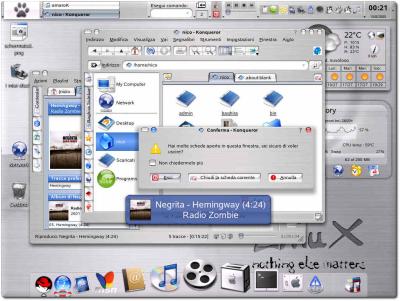
  • Theming: lastly, choose colour schemes and background pictures that suit you best. An appealing environment encourages work. I personally prefer the nocturnal, dark-coloured themes (including widgets and window decorations). Also confer: old Windows 98 example; Linux example.

Is your operating system cannot attain some of the above behaviours (or does not permit it), you may wish to consider more flexible platforms and desktop environments. My favourite is KDE on Linux. It continues to evolve very rapidly.

Rational Break-down of Virtual Desktops

Pager in KDE
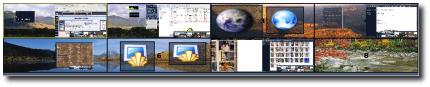
A pager which contains 8 virtual desktops

ASSOCIATION of numbers with tasks can make life somewhat easier. Logical subdivision of processes can be reached in this way. Depending on the task at hand, a certain mnemonic can serve as a bridge to quick access. In this particular case, I am thinking about virtual desktops, which I have introduced and described before.

Let us consider a variety of activities which are undertaken in the daily routine of a computer user and assign each to a particular virtual desktop — a particular number, that is. This way, one can immediately jump from one process to another rather than ever launch and re-launch applications, or even minimise and restore any. Here are the mnemonic that I found to be most useful over time.

1. In my main workstation (University, dual-head as shown above):

  • Desktop 1: Web browsing (occasionally feeds)
  • Desktop 2: Right-hand-side: E-mail, left-hand-side: music
  • Desktop 3: Reading (usually GhostView and file managers)
  • Desktop 4: Programming
  • Desktop 5: Writing/authoring
  • Desktop 6: Remote connections (permanent link to two other workstations)
  • Desktop 7: Photography, usually vacant or neglected
  • Desktop 8: Communication, e.g. newsgroups

2+3. At work and at home:

Desktops 1 and 2 are consistent with the above. As the machines are not dual-head and only 4 virtual desktops are used (anything beyond 4 is often an excess), desktop 3 centralises many of the remote connection and file browsing aspects. Desktop 4 usually involves both reading and programming.

Either way, regardless of which numbers you assign to your favourite tasks, a quick tap on CTRL+number becomes natural and, given a certain task, the number makes transition to it more natural, almost innate. Diversion of attention can be made trivial and speed is then comparable with that of will. All programs are either in the visible (active) or virtual frame buffer.

Linux Saves Time

Desktop with previews

OCCASIONALLY I get reminded why productivity and Windows remain an oxymoron. Take authoring in research, for example.

Colleague: juggling processes, restoring and minimising active windows, yet unable to cope with the complexity and clutter in the desktop

Over here: 8 virtual desktops

Colleague: needs to convert many images from encapsulated PostScript to PNG. Approach: start bloatware and wait for a little while; Load all images, assuming physical memory permits it; Wait for a long time for images to be rendered; Save images one by one and change file extension by hand.

Over here: a simple 3-line script does all of the above in just seconds. It uses ImageMagick.

Colleague: uses Wordpad for composition and paint.exe for simple graphics

Over here: a decent choice of professional tools

Colleague: figure placement handled by hand, hyphenation not possible. LaTeX is not reliable under Windows as it is not ‘native’

More issues: occasional viruses, FS maintenance, regular reboots (thus restoration of workspace is needed)

I estimate that we save several hours per day by opting for Linux. I am left baffled wondering: how can anyone who uses a computer for work possibly choose Windows? Has the world turned upside down?

I will soon be writing about the transition of a close friend to Linux. He recently discovered a world of power computing and left Windows on the curb. Linux stereotypes are often the main peril.

Google Take Interoperability More Seriously

Google Earth
Google Earth on Windows; screenshot taken
when it was first released; click to enlarge the image

AFTER several months of waiting, the Windows version of Google Earth has been ported to run on Macs too.

If I recall correctly, they did the same with Google Talk recently. Will a Linux version be next? That would the real test. So far they have primarily, if not exclusively, catered for commercial, closed-source platforms. Perhaps Google Pack was a key milestone, due to which they could not afford to lose time on ports.

Rants about interoperability have been voiced before although Google’s media player was cross-platform from day one. Google’s clear intent is to remain Open; in fact, all of their Web-based tool are rarely ‘platform-discriminatory’.

OpenOffice and Microsoft Office Comparison

Microsoft Word
A screenshot of Word (Office 12) with copied graphical themes highlighted

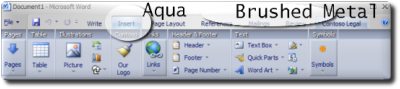
OPENOFFICE 2 was officially released a few months ago. Microsoft Office 12 will probably be out in the near future and it imitates much of the Mac OS X look, for which it has been criticised. See the above image if persuasion is needed that the contention is true.

Around the release time of OpenOffice, a particular controversial article made the rounds. It described OpenOffice as slow and inferior. Comparisons involving Microsoft Office and OpenOffice were only conducted under Windows, for it seems the only possible platform for benchmarks of this nature. However, it is a ‘home and away’ situation.

Windows is optimised to run Microsoft Office. It keeps many common objects in memory, for which there is a noticeable cost. On the other hand, OpenOffice ‘feels’ most comfortable in its origins: Open Source environments. The Windows OpenOffice version could be treated as merely a secondary port. Moreover, someone claimed that the OpenOffice build which was used in this comparison had been compiled with debugging ‘bits’ which accommodated for bug reports. It was not the final product, but merely a candidate with a practical purpose that entailed improvements.

Judging and comparing office productivity tools on Windows is unfair and grossly biased. It is like assessing the performance of a football team based only on its home games. This is not the first time that biased studies are conducted. Web servers, legacy hardware, and security are a few more examples. There was recently a big controversy over a study which counted security flaws, but compared Windows against many dozens of different Open Source platforms and applications like Apache and Firefox. The miserably-delivered figures were very deceiving, almost intentionally so. Flaws count was aggregated from just about any distribution or derivative of UNIX and then compared against the corresponding number from Windows.

Plain Text Justify and Hyphenate

Book scanning
Giving the more professional look to your text

THIS blog item revolves around a wonderful Perl script which can revolutionise the layout of your plain-text messages, giving them looks reminiscent of that found in professional literature. The tool is called the Paragraph Adjuster with Hyphenation and it is of course free.

To give an example of its use, a file I created in ~/Main/Programs/Scripts/indent.sh contains the following:

perl ~/Main/Programs/paradj/paradj.pl --width=74 -h -n -b
     ~/in > ~/out

kedit ~/out

The first command invokes the script from its path and passes it some arguments, which are personalised. The input come from the file in and output is sent to a reserved file (out) which acts as a common container and somewhat of a placeholder. The last command makes the output available to me (on screen) to copy and then paste, often to be used in newsgroups, mailing lists, and rarely in E-mail too.

The script is based on a Perl module that was inherited from TEX. The LATEX family is rather presentation-aware and smart in terms of its fragmentation decisions. It ‘knows’ when it is reasonable to hyphenate and where added spaces for justification are least distracting. Maybe the same applies to indentation. There are many options in the script, which control the tendencies, the priorities and thus the behaviour of the output.

The command example above hopefully illustrates how simple it is to use the script, as well as invoking it rapidly, without too much manual intervention and input/output ‘piping’. I have also set up a shortcut (CTRL+ALT+7) to convert in to out and then copy and paste onto the required place, so indent.sh need never be called from the command-line.

Example from my most recent use of the script:


The  short  answer:  Windows has  got  itself
trapped. Over the years it has adopted overly
permissive  and  lenient mechanisms that  ne-
glected security. Security seemed like a cost
hat  hindered functionality. Unauthorised in-
stallations and lacking verifications are one
example. ActiveX controllers are another.

Notice that all text lies within a rectangular block. This needs fixed-sized fonts, which cannot be guaranteed by all recipients or readers. If sent to a recipient and read by a mail client, feed reader, newsgroups reader, browser, etc., it may be displayed in whatever form the user prefers, even proportionally-differing font sets.

Retrieval statistics: 21 queries taking a total of 0.096 seconds • Please report low bandwidth using the feedback form
Original styles created by Ian Main (all acknowledgements) • PHP scripts and styles later modified by Roy Schestowitz • Help yourself to a GPL'd copy
|— Proudly powered by W o r d P r e s s — based on a heavily-hacked version 1.2.1 (Mingus) installation —|