 uppy has become familiar to many as a Live CD option for aging PCs that sit on people’s desktops at home, maybe even at some offices. Puppy recently became more of a derivative of Ubuntu (arguably, depending on the definition of “derivative”), but its legacy and/or its strength was mostly associated with its version that I used. It contains JVM and it can also use other lightweight desktop environments.
For this review, I have used Puppy for a period of 5 days, first as a desktop (ish) on a server machine and then, briefly, as a development environment (it did not get very far). The way I will structure this review will be compartmentalised and it will focus on items that are more or less unique to Puppy. For example, I will ignore GRUB.
Puppy, by default, runs in a mode similar to root and it appears to be quite strictly a single-user OS. It comes preinstalled with a lot of valuable and lightweight applications. It also has Firefox, which is probably the exception when it comes to this defensible ‘weight’ criterion. Chromium is made available through the repositories and it works very well. I tried it and it was perfect. Puppy comes with a variety of themes (about half a dozen) and more can be added in a user-friendly way which, as I unfortunately found out, can lead to a system dependency Hell (it is not entirely clear what caused this). In order to effectively assess Puppy, there ought to be a separation between the boot process, which is fast but lacks polish, the desktop environment, and the applications, some of which are unique to Puppy. The menu which contains these applications is divided into sections that group related items. The problem is, this menu is cumbersome to edit, it is not clear how to create shortcuts on one’s desktop or task bar, and sometimes it is hard to find the category under which is application of interest was placed. Even finding a terminal window application took me minutes of manual searching (no simpler mechanism is available). Configuring the behaviour of the environment is in general very cumbersome compared to newer and heavier desktop environments. This may not be a huge deal when striving to just use this environment to merely host Firefox or OpenOffice.org. It does, however, give little justification to using Puppy on a machine with decent specifications (such as the one I tested Puppy on).
Puppy is generally easy to use and it contains many technical tools in the appropriate menus. It comes preloaded with OpenSSH and other front ends to such “Swiss army knives” that would help advanced users and make it almost suitable for some servers. The problem is, when something is missing (GCC for example), it leaves the user dependent on package managers that do not always succeed at installing desired applications, especially KDE applications and even GNOME applications. The package manager in this release of Puppy offers a gateway into Ubuntu repositories, but there is no guarantee that these would work. And worse — under some of the Puppy packages there are items that explicitly say that they are broken or may break something else. Why even include them? The last thing a user would want is a hosed system; it’s better not to have some software (or having to compile it from source) than to not have the operating system (e.g. in case it gets rendered unbootable). If a package is known to be sensitive and prone to issues, then Barry should probably omit it altogether, leaving the user with something which is not self-nuking. But anyway, I digress.
Here are some of the nice things that I can say about Puppy. Apart from booting fast it is also fast enough while in use, although it may depend greatly on the hardware used and it might scale a lot worse with old processors and deprivation of RAM. This would require another test on a different machine. The selection of themes that Puppy comes with by default is quite pleasing considering the fact that there are no X Composite effects. The task bar (includes more than just user tasks/windows) is not cluttered and the menu cannot baffle any user. Even the names of applications are usually self-explanatory,which is important.
Screenshots would have complemented this review had I still been able to start X. The thing is, Puppy was a challenge to set up properly on a widescreen display. It offered some low-level tools for X configuration and display setup, but these never achieved the required display mode, even after 2 hours of persistent attempts (I have a lot of experience with X, so the fault is not purely mine). In command line mode, Puppy has a lot of the tools one might expect to find (editors, file system repair, rsynch and so on). It would probably benefit from a better terminal application which is visually richer and more customisable (the one it currently has offers no customisation at all and it is rather rudimentary). For those who are into the command-line oriented work, Puppy is not a good choice and perhaps it is possible to install a better terminal to make up for it in the future (or at present from the repositories). Good terminal emulators need not take up much space, so this is an area worthy of expansion in the future.
One thing that occurred to me is that the GUI is not always consistent and does not behave in the best of ways. For example, when installing packages, they get installed upon a single click on the package name and it is not possible to tick several for simultaneous or queued installation. Then installation gets very verbose and distracting. Another example is, when trying to change the number of virtual desktops (for pager size) there is a request for keyboard input of a number between 1 and 8, using a textbox without limitation on length. Why not use a slider or a set of buttons to restrict and validate the user’s input? This might be a JVM-only issue, but either way, even Fluxbox does not have such issues (Fluxbox runs on my old laptop). Openbox and IceWM I have not used for a long time, but they too did not have such fragmented and unexpected settings structure. These are both available for Puppy, but I did not get around to testing them.
Now we come to remarking on Puppy as a server. In short, it is not. Puppy’s task bar gives way to the stereotype that it’s a browser-based distribution, as it links only to two browsers, Puppy’s browser and Firefox. If this machine is to be used as a monitoring server, than maybe with a browser up and some terminals it is suitable for the task. But otherwise, given the lack of necessary applications (preinstalled or in the repository), aspirations to run Puppy on a server are a dream pipe. I gave up on this pretty fast, before I even managed to compile a mail server package (too many dependencies and packages were missing).
I wish there was more to tell and I wish I could recommend Puppy for anything other than very old computers, but based on 5 days of use, Puppy is a niche product and it does what it’s intended to do pretty pretty well. A friend warned me over at Identi.ca about dependency nightmare and he was right. It was only days later that I started to experience those myself. At first I failed to install some KDE/Qt applications, but later it was the addition of many more packages that should be ‘safe’ that led to the “nightmare” I had been warned about.
Puppy is available for free download from its well-established Web site. it packs a lot of power in very small size and it is available for use in live mode too, meaning that one can try without committing by full installation. This is probably one of the strengths of this GNULlinux distribution.
Thank you, Puppy. And thank you, Barry, for Puppy.


 Filed under:
 e are fortunate enough to live at a time when many (if not most) phones run Linux and the overwhelming majority of Web servers do too. Those who say that GNU/Linux is “not ready for the desktop” hardly exist anymore. So for those who insist on running it on their desktop/s, there is rarely a major barrier. Videos work just fine (increasingly with HTML5 and free codecs, not Flash), a lot of applications are Web based, and some of the world’s best Web browsers are available for GNU/Linux, so how can one complain? Among developers and producers, there is no real pitfall associated with GNU/Linux (those that are brought up can easily be defended against, e.g. “fragmentation”).


 he myths about “desktop Linux” are mostly associated and tied to “easy of use”. Many people, mostly ones with next to zero experience when it comes to GNU/Linux, have blindly decided that the slow growth of GNOME and KDE is due to an inherent problem other than marketing. But perceptions are changing when people discover that they are surrounded by GNU/Linux, even if their own client machine does not run a Free/libre operating system.
 LOT of PCs that were perfectly fine 5 years ago were made obsolete not by dysfunctional hardware but by resource-greedy monopolistic and monolithic operating systems such as Windows Vista. This was bound to be a blessing to GNU/Linux, said one member of the Manchester LUG around 2006 when Vista was being finalised. He was right. Several years down the line, machines which were back then acceptable cannot possibly run the latest Windows, leaving GNU/Linux to fill the gap with its many distributions (suiting old and new).
 y most used and highly valuable applications are probably Kate, which I
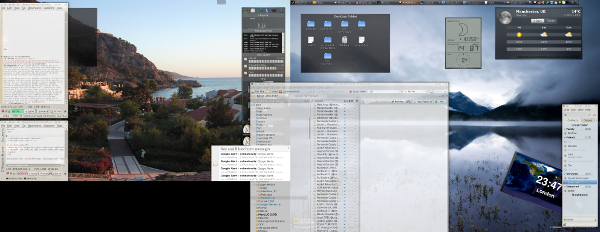
 everal years ago in this Web site I explained how I work with KDE. It was so long ago that it was KDE 3.1 and I also worked with 4 or 8 dual-head workspaces (now I have 10 that are actively used). But today I would like to share some working tips that are based on adaptations I made over the years in order to increase efficiency in workflow. The short story is, just as activities should be divided conceptually based on some criteria of commonality (e.g. which window needs to be near which other windows), so should text files. It sounds very obvious, but let’s have a better, more detailed explanation.