On interacting with various file servers or client servers as through they are local
Background
ometimes we may wish to allow users, logged in remotely (away from their main workstations) or wishing to connect to another host where essential files are located, to access those files. A convenient way to achieve this without proprietary protocols is SSH in SCP ‘mode’, meaning that OpenSSH is being used to gather information about remote filesystems and pass files across the network upon demand. There is a convenient ways to manage this in UNIXy file managers These are unified by the universal command-line syntax, but the front ends may vary and be based on Qt, GTK, etc. Here is a demonstration of how it is to be achieved in Dolphin (KDE) in order to remotely log in to an SSH-enabled (running sshd) host.
Connecting to the Server
File managers typically have an address bar, which in simplified interfaces are not editable unless one clicks the universally-accepted CTRL+L (for location), which then replaces a breadcrumbs-styled interface with an editable line. Here is an example of Dolphin before and after.
Now, enter the address of the server with the syntax understood by the file manager, e.g. for KDE:
fish://[USER name]@[SERVER address]
One can add ":[DIRECTORY path]" to ascend/descend in the accessed server.
The syntax is the same for Konqueror and a few other file managers, with the exception of the “fish://” part, which is handled by kio. Here is what the password prompt/dialogue may look like.
Syntax may vary where the protocol, SSH in this case, is specified, but the port number if always the same and Nautilus can handle this too. Once the remote filesystem is shows like a local file system it can be dragged into the shortcuts pane, bookmarked, or whatever the file manager permits for fast access, including the facility for remembering the password/s (handled by kwallet in KDE).
The Nautilus Way
I have installed Nautilus to document the process for Nautilus as well.
The process can be done with the GUI in Nautilus. This is to be achieved slightly differently and it take a little longer. Here are simple steps:
Step 1
Open Nautilus (installed under KDE in this instance, using Qt Curve in this case).
Step 2
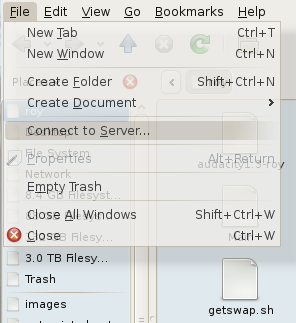
Collapse the “File” menu.
Click “Connect to Server…”
Step 3
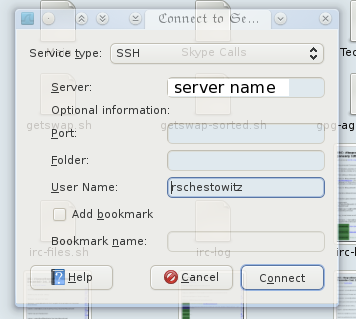
Choose SSH, unless another protocol is desired in this case.
Step 4
Enter the server name (or IP address). Optionally enter the port number (if different from the standard port for this protocol), path (called “Folder”) and of course the username (“User Name”). Shortcuts can be created by using the options beneath.
Step 5
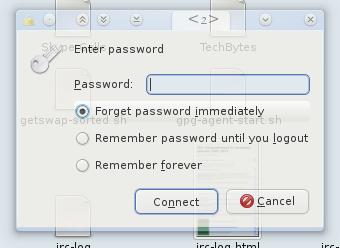
Finally, enter the password and access is then granted.
By keeping passwords in memory or disk one can more rapidly and transparently access the remote drive again, reaching files seamlessly.
Working on Files Remotely
This is where a lot of power can be derived from the above process. Using KIO slaves in KDE, for instance, files can be opened as though they are stored locally and when an application saves (applied changes) to those files, KIO will push the changed file into the remote file store (working in the background). This means that headless servers can be interacted with as though they are part of the machines that access them. No need for X Server, either. Since many machines out there are configured to be minimal (no graphical desktop), this sure proves handy.
ackups that are robust and resistant to disasters like fire should be distributed. Backing up by writing to external drives is good, but it is not sufficient. Here is how I back up my main machine. Backup is quick in a smaller number of rather large files (not too large as some file systems cannot cope with those), so one trick goes like this:
sudo mkdir /media/backupdrive/`date +%Y-%m-%d` # (if disk space permits, or via external mounted drive for another safety net)
sudo tar -cf - /home/|split -b 1000m - /media/backupdrive/`date +%Y-%m-%d`/Home-`date +%Y-%m-%d`.tar.
This includes all the hidden files.
To reassemble:
cat *|tar -xf
this is then scp‘d or rsync‘d over to another box based on a wildcard or directory like
/media/backupdrive/`date +%Y-%m-%d`
This leaves a stack of backups in case the latest one is already ‘contaminated’. rsync of the original files, uncompressed and untarred, can be fast except for the first time, but for a stack of backups it’s not suitable.
But more files need to be backed up, depending on the bootloader for instance.
Dr. Roy Schestowitz: I want to know how big a threat you think the so-called “secure” boot is considered to be to the Free software movement.
Dr. Richard Stallman: It’s a disaster. Well, except that it’s not secure boot that’s a disaster, it’s restricted boot. Those are not the same. When it’s front of the control of the user, secure boot is a security feature. It allows the user to control what programs can run on a machine and thus prevent — you might say — unexpected malware from running. We have to distinguish the unexpected malware such as viruses from the expected malware such as Windows or Mac OS or Flash Player and so on, which are also malware; they have features that hurt the user but users know what they are installing. In any case, what secure boot does is that it causes the machine to only work with (?) programs that are signed with a certain key, your keys. And as long as the user controls which keys they are, then it’s a security feature. However, it can be chained into a set of digital handcuffs when the user doesn’t control the keys. And this [is] happening.
Microsoft demands that ARM computers sold for Windows 8 be set up so that the user cannot change the keys; in other words, turn it into restricted boot. Now, this is not a security feature. This is abuse of the users. I think it ought to be illegal.
It’s a matter of control by the vendor of course, not control by the user himself
Exactly, and that’s why it’s wrong. That’s why non-free software is wrong. The users deserve to have control of their computers/
I think that not only Windows is going to be an issue in fact, if you consider the fact that even a modified kernel is going to be in a position where it’s perhaps not seen as verified for execution. Right, I’m saying, it might not only be a malicious feature in case of something like Windows running on it, it’s also for — let’s say — a user of the offered operating system but it’s free if the user wants to modify the operating system, for example…
The thing is, if the user doesn’t control the keys, then it’s a kind of shackle, and that would be true no matter what system it is. After all, why is GNU/Linux better than Windows? Not just ’cause it has a different name. The reason it’s better is because it’s freedom-respecting Free software that the users control. But if the machine has restricted boot and the users can’t control the system, then it would be just as bad as Windows. So, if the machine will only run a particular version of GNU/Linux, that is a restriction feature. And I haven’t heard anyone doing that yet with GNU/Linux, but that’s what Red Hat and Ubuntu are proposing to do things — somewhat like that — for future PCs that are shipped for Windows. But it’s not exactly that. And my reason is, the users will be able to change the keys. They will be able to boot their own modified version of the system of Fedora or Ubuntu if they want. So, what Fedora and Ubuntu were proposing doesn’t go all the way there. They’re proposing to do things to make it more convenient for users to install the standard version of those systems. But if things go as it has been announced, users will still be able to change the keys and boot their own versions. So, if all the restricted boot — but it will be something that goes sort of half-way there — it’s somewhat distasteful.
On the other hand, with Android, which is another mostly Free operating system which contains Linux but doesn’t contain GNU, it’s quite common for the product to have something equivalent to restricted boot, and people have to struggle to figure out how they can install a modified and more free version of Android. So, the presence of the kernel Linux in a system doesn’t guarantee it’s going to be better. And I’ve heard someone say — oh, it hasn’t been checked — that a particular or kind of Android device is actually using an Intel chip with restricted boot.
One of the concerns that I think is worth raising is the fact that, as far as I know, with many of the embedded devices, especially those based on ARM, I believe it’s not even possible to get into boot menu to disable so-called “secure”…
That’s where Microsoft is really going all out, because Microsoft has ordered essentially — demanded — that those shipping ARM devices for Windows 8 make it restricted boot with no way to get around it.
Yeah, which also means of course waste of… all sorts of impacts on the environment. Any time that hardware become obsolete with the operating system itself is not being used of course…
Well, it’s worse than that. It means basically that those devices, you have to throw them out if you want to escape to the free world. And this — in the past — we were able to install, to liberate a computer by installing Free software on it instead of its user-restricting operation system, and this of course was tremendously helpful to the spread of GNU/Linux because it meant that users could move to freedom. It would be much harder if they had to buy another computer to do so. So it’s a very damaging thing that Microsoft is doing and so we need to look for every possible way to stop them or tweak what they’re doing.
Well, I wanted to ask you, one of our readers — his name is Will — is asking me if you have seen any new good hardware that can take coreboot.
I’m sorry, what?
One of my readers — a guy called Will — he has asked me if you have seen any new good hardware that can take coreboot.
I don’t know. Basically, I don’t keep track of hardware models. I only remember their names anymore, except for the one I use, which is, the Lemote Yeelong and it doesn’t run coreboot but it will run timar [?] in GRUB, it has a Free BIOS. When it comes it has a Free BIOS, which is why I chose it. But in terms of running coreboot, well, the machine which you run coreboot on are Intel-type machines. Now, there are a couple of… there is a problem, and that is, a lot of the Intel — and also AMD — CPUs require a microcode blob, and coreboot has these microcode blobs, which is the same kind of problem as firmware blobs in Linux. So, what we really need to do is make coreboot libre, just as we make Linux libre (which doesn’t have the blobs), keep (?) the coreboot libre (which doesn’t have the blobs) and then we need to see which processors actually run adequately without any microcode blob. And we’re looking for somebody who wants to lead this project ’cause it takes work. Now, leading this project doesn’t mean that you personally get all these kinds of hardware; oh, no, it would be asking the whole community to test things, but somebody has got to ask the community to do it, spread the word, receive the responses, put them together, and publish the list. Would (?) he like to do that? If he is really interested in having the answer to this question, maybe he’d like to help get the answer, and that would help the whole community.
More from Stallman is to be published in coming days.
EVERAL years ago I wrote about an old backup procedure of mine. Sometimes people set up a job to make a backup, but what about removing backups that are too old to matter? If a directory/file needs deleting based on age, with wildcards one could run something like:
rm ~/some_file-`date -d "7 day ago" +%d%m%Y`*
rm ~/some_file-`date -d "6 day ago" +%d%m%Y`*
Or quick and dirty (risky if there’s a mixture of files in the said location):
find . -atime +7 -exec rm {} \;;
There’s nothing complicated to it. Once it’s done once, it can be modified thereafter.
CHAT is a GNOME/GTK classic and it comes in many flavours, for different operating systems as well. To GNU/Linux users, XChat is like mIRC, an all-time classic (I used it when I was 14). But XChat is not the best thing out there. Its principal drawback is not the toolkits it uses, which render it ugly under KDE (even with QCurve). Its main drawbacks are the lack of functionality; Quassel and Konversation not only look better but also do a whole lot of stuff. But overall, Konversation is the winner among the two and it keeps getting better. I was stuck with XChat for almost 2 years (under KDE) until I discovered Konversation through recommendation from Sebastian. If you are using anything other than Konversation, do consider giving it a go. Quassel was a little too messy when I tried it, but if things have improved, please leave a recommendation or suggestion.
AD habits die hard. Good habits stay, so over time we do things more effectively. Today’s post may be relevant to post-doctoral folks whose work involves a lot of computation, including over-night or multi-day experiments.
6 or 7 years ago I wrote detailed posts about how I was using KDE to run experiments on entire clusters of Fedora boxes, over SSH. It has been a long time since then and nowadays, rather than use many dual-core boxes I just mostly use a pair of 8-core computational servers. The tricks are mostly the same and the scripts are largely reused from those that I wrote around 2004 (they are publicly available in this Web site). The procedures are mostly the same, but technically, a few things have changed and this post will detail them (aside from that, back then I did my Ph.D. and now I get paid to run these experiments).
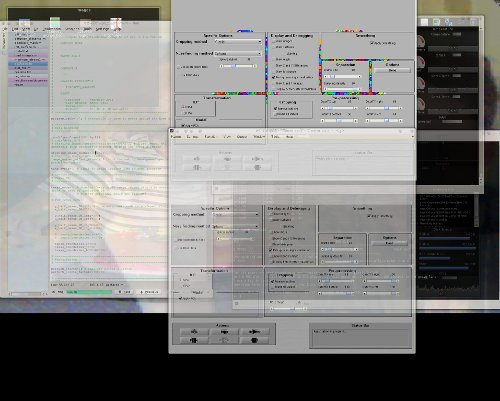
In case of network issues, it is important to run everything but the computation locally. This means that code editing, for example, should be done locally. This reduces cursor/menu lag and prevents loss of work in case of loss of connection. It also assures that files get written to more than one place (local plus remote). Kate with KIO (in Kate) use slaves to enable editing of files over SFTP or SCP/SSH, so this functionality ought to be exploited for controlling experiments remotely. For other tasks, separate terminal windows (e.g. Konsole) should be opened, preferably with endless scrolling buffer, for each remote machine. GUIs can be created to enable quick adjustment and running of experiments. A good terminal will stay active and visible even when a remote connection gets closed, in which case, results can still be observed. In addition, it may help to have another terminal window connected to each remote machine in order to track load throughout runtime, as well as other things (one busy session may permit nothing else to be done on the same terminal). Here it is illustrated graphically, based on screenshots just taken.
Full screen view on workspace 8 (research):
Let’s break it down into the left and right monitors:
This left side of the dual-head display contains the tabbed-style view of program files that need editing. All those files are using KIO to essentially be seen as local even though editing them modifies them on the remote servers that I connect to (see terminals on the right). In addition, I used Java framework to create a GUI front end for the experiments. It is singleton for each server.
On the other screen I have this:
Shown at the top left is a window that’s invoked by the program when results are ready. By using KDE’s window-specific settings I can force all such windows to always open in workspace 8 (research), so even if I am busy with other tasks the windows will quietly show up where it belongs, sometimes along with dozen other windows that need attention later. On the right side there are terminals connected to the computational servers. One currently gets used to rsync the code across across servers and the other is tracking server loads.
So, this is pretty much how I use workspace 8. I previously explained how I use workspace 2 (there are 12 in total). KDE makes it easy to multi-task without getting distracted.
Retrieval statistics: 21 queries taking a total of 0.090 seconds • Please report low bandwidth using the feedback form
Original styles created by Ian Main (all acknowledgements) • PHP scripts and styles later modified by Roy Schestowitz • Help yourself to a GPL'd copy
|— Proudly powered by W o r d P r e s s — based on a heavily-hacked version 1.2.1 (Mingus) installation —|


 Filed under:
  ometimes we may wish to allow users, logged in remotely (away from their main workstations) or wishing to connect to another host where essential files are located, to access those files. A convenient way to achieve this without proprietary protocols is SSH in SCP ‘mode’, meaning that OpenSSH is being used to gather information about remote filesystems and pass files across the network upon demand. There is a convenient ways to manage this in UNIXy file managers These are unified by the universal command-line syntax, but the front ends may vary and be based on Qt, GTK, etc. Here is a demonstration of how it is to be achieved in Dolphin (KDE) in order to remotely log in to an SSH-enabled (running





 ackups that are robust and resistant to disasters like fire should be distributed. Backing up by writing to external drives is good, but it is not sufficient. Here is how I back up my main machine. Backup is quick in a smaller number of rather large files (not too large as some file systems cannot cope with those), so one trick goes like this:
 Dr. Richard Stallman: It’s a disaster. Well, except that it’s not secure boot that’s a disaster, it’s restricted boot. Those are not the same. When it’s front of the control of the user, secure boot is a security feature. It allows the user to control what programs can run on a machine and thus prevent — you might say — unexpected malware from running. We have to distinguish the unexpected malware such as viruses from the expected malware such as Windows or Mac OS or Flash Player and so on, which are also malware; they have features that hurt the user but users know what they are installing. In any case, what secure boot does is that it causes the machine to only work with (?) programs that are signed with a certain key, your keys. And as long as the user controls which keys they are, then it’s a security feature. However, it can be chained into a set of digital handcuffs when the user doesn’t control the keys. And this [is] happening.


 CHAT is a GNOME/GTK classic and it comes in many flavours, for different operating systems as well. To GNU/Linux users, XChat is like mIRC, an all-time classic (I used it when I was 14). But XChat is not the best thing out there. Its principal drawback is not the toolkits it uses, which render it ugly under KDE (even with QCurve). Its main drawbacks are the lack of functionality; Quassel and Konversation not only look better but also do a whole lot of stuff. But overall, Konversation is the winner among the two and it keeps getting better. I was stuck with XChat for almost 2 years (under KDE) until I discovered Konversation through recommendation from Sebastian. If you are using anything other than Konversation, do consider giving it a go. Quassel was a little too messy when I tried it, but if things have improved, please leave a recommendation or suggestion.